Adding New Rule
EndPoint ControlService used by GFI OneGuard to control access to devices. agentA GFI OneGuard component that runs as a background service on target devices and handles the deployment of patches, service packs and software updates. uses Access Rules to establish which devices are allowed and which devices are blocked.
NOTE
For a machine running in terminal services, the GFI OneGuard EndPoint Control policies based on users may not work properly. Hence, in such scenario, it is suggested to simply use the default rule that applies to all users.
To add a rule:
- Login to the GFI OneGuard PlatformThe main component of GFI OneGuard that connects all the services offered by the product and the database that stores all collected information..
- Go to Manage > Groups.
- Locate the group you want to edit in the left pane, hover the mouse over the group and click Manage.
- Go to Services > EndPoint Control.
- Under Access Rules click Add Rule.
- Type a Rule name that should be unique and an optional description.
- Select the users or groups that inherit the configuration of this rule under Users/Groups. Start by typing all or part of a user or group name to populate the list of options available.
NOTE
Members of the Domain Administrators groups are automatically part of the Power Group users and are exempt from every policy. Remove the user from the Domain Administrator group or create a new policy and apply the policy to the Administrator group.
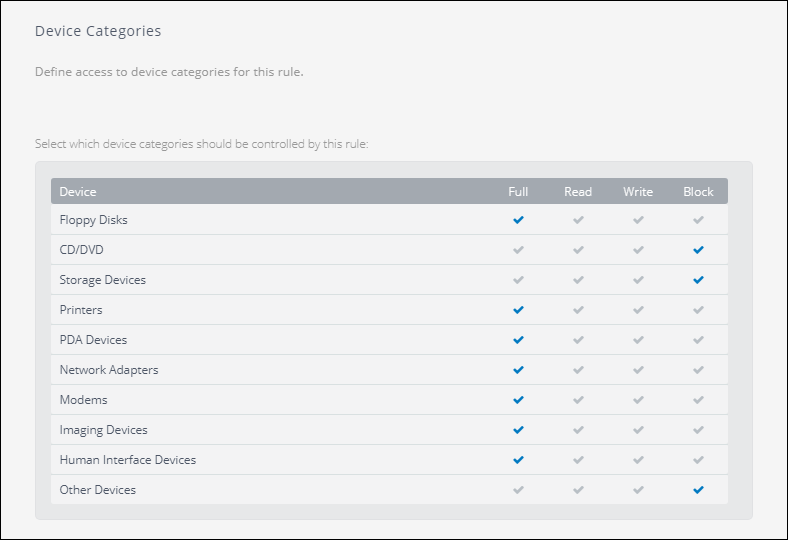
Permission granted to device
- Under DevicesMachines connected to a network that have been discovered by GFI OneGuard. Categories, configure the access to device categories for this rule. The available permissions are:
| Permission | Description |
|---|---|
| Full | User has full permissions to the files present in the device. |
| Read | User can see and read the files present in the device, but cannot edit, delete or save files on the device. |
| Write | User can read and edit the files in the devices, but cannot execute or delete files. |
| Block | User does not have any permission and access to the device is blocked. |
- Repeat the operation above to grant permissions to Connectivity Ports.
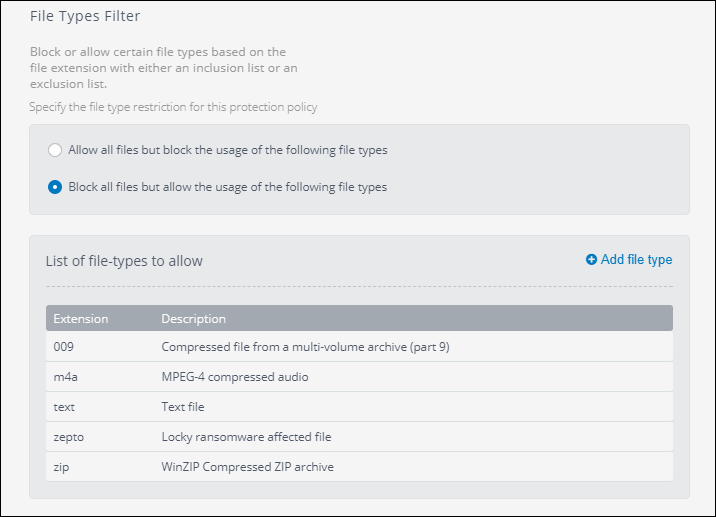
Allow or block file types
- Specify the file type restriction under File Type filter. These options are related to the List of file types. The options are:
| Options | Description |
|---|---|
| Allow all files but block the usage of the following file types | Select this option to allow all file types except the files present in the File type list. |
| Block all files but allow the usage of the following file types |
Select this option to block all files types except the files present in the File type list. |
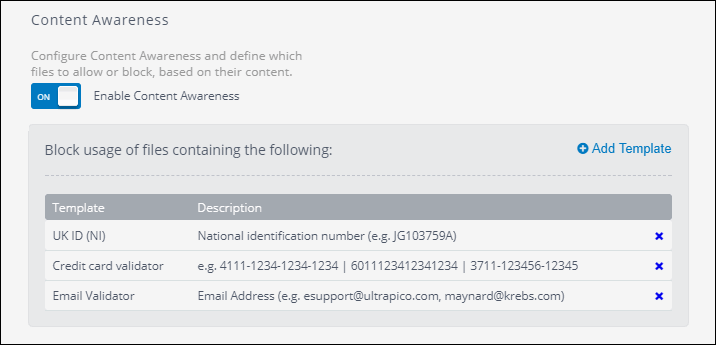
Content awareness options
- Turn on or off Enable Content Awareness. Content Awareness enables you to specify the file content restrictions for a particular protection policy. The content awareness feature looks into files transiting the endpoints via removable devices and it identifies content based on pre-configured and custom regular expressions and dictionary files.
- Select which file options define the threshold file size to process and how to handle archives. The options are:
| Option | Descriptions |
|---|---|
| Ignore files larger than the following maximum file size | Select this option to enhance the speed of the scanning process passing without scan files large than the specified maximum size. |
| Block files large than the following maximum file size | Select this option to enhance security and block files that exceed the specified maximum size. |
- Specify the maximum file size to ignore or block.
- Specify inside how many levels EndPoint Control should verify inside archives. The higher the number more security is added, but the scanning of files consumes more time.
- Turn on or off the option to Enable Device EncryptionEncryption is the conversion of standard data into ciphertext with the aim to protect the confidentiality of data stored making it unreadable to third-parties, but available for those authorized to decode it with the correct key.. For more information refer to Configuring encryption.
- Use the Blocklisted Devices to specify devices that are always blocked. Use either the global blocklist or a custom list of blocked devices specifically for this rule. For more information refer to Blocklist.
- Use the Whitelisted Devices to specify devices that are always allowed. Use either the global whitelist or a custom list of allowed devices specifically for this rule. For more information refer to Whitelist.
- Slide Alerts to enable or disable notifications. When notifications are turned on, the following options are available:
| Option | Description |
|---|---|
| Send an email when Error Events occur | An alert is sent when an error occurs. For example, an agent is not responding. |
| Send an email when Violation Events occur. | An alert is sent on occasion of an access violation. For example, an invalid password or an agent stopped maliciously. |
| Send an email when Encrypted Device Mount Events occur | A notification is sent when a new encrypted device is mounted. |
| Send an email when Blocked Events (Full or Read) occur | An email is sent every time that a user tries to access a device that should be blocked. |
| Send an email when Access Events occur | An email is sent every time that a user accesses an allowed device. |
| Specify recipients you want to receive the digest. | By default, all administrators are set to receive the alerts. This option can be altered and new recipients can be added. |
- Click Apply.