Whitelist
Use the Whitelisted DevicesMachines connected to a network that have been discovered by GFI OneGuard. to specify devices that are always allowed.
The whitelist allows the administrator to have policies that block the use of various categories and ports, while ensuring that the devices listed are always allowed.
You can use either the global whitelist or a custom whitelist to allow devices:
| Type | Description |
|---|---|
| Global Whitelist |
Can be set at service level and can affect all groups or devices when selected. To create a global whitelist go to Manage > Services > EndPoint ControlService used by GFI OneGuard to control access to devices.. |
| Custom Whitelist |
Can be set at group or device level and affects only the group of devices where it is created. To create a custom whitelist go to Manage > Devices > EndPoint Control. |
The procedure to add a device to a whitelist is the same for the global and custom whitelist and consists of two steps:
Step 1: Obtain the Hardware ID
GFI OneGuard relies on the information stored in the Device Manager of the computer to which a device is plugged-in to obtain the hardware information and applies policies accordingly.
To obtain the hardware IDCode created by the Operating System to identify attached devices.:
- Open the Panel Control on the machine that the device is plugged.
- Go to Hardware and Sound > Device and Printers > Device Manager.
- Expand the category, right-click the device and select Properties.
- Open the Details tab.
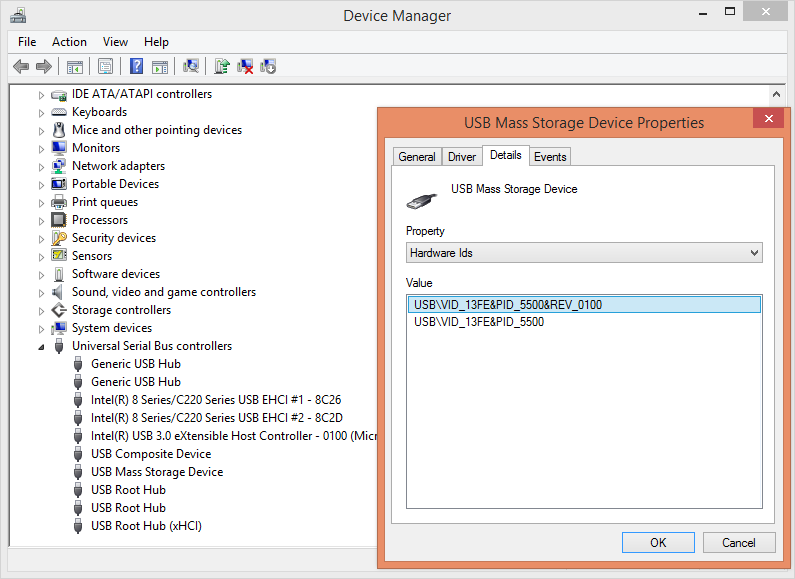
Device Manager showing hardware Ids
- Under property select Hardware Ids.
- Copy the items displayed in the Value textbox. By default more that one item is listed. The longer value on top is the one with more details and should be used.
Step 2: Add Hardware ID to exceptions to the Whitelist
- Login to the GFI OneGuard PlatformThe main component of GFI OneGuard that connects all the services offered by the product and the database that stores all collected information..
- Go to Manage > Devices.
- Select the entire Network or a specific group.
- Go to Services > EndPoint Control
- Click Add Rule.
- Under Whitelisted Devices select the type of whitelist:
| Type | Description |
|---|---|
| Global Whitelist | Set at platform level and applicable to all groups. |
| Custom Whitelist |
Set at group level and applicable to all devices that have the specific policy applied. |
- Click Add Device Exception.
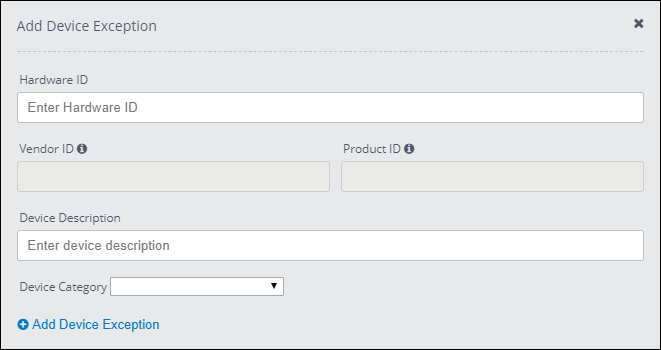
Options available to add a device to exception list
- Enter the following information:
| Field | Description |
|---|---|
| Hardware ID | Paste the Hardware ID copied in the previous step. Vendor ID and Product ID are automatically populated. |
| Device Description | Enter a description of the devices included in the list. |
| Device Category | Select a category from the drop-down list. |
- Click Add Device Exception.