Working with Access Rules
The Access Rules policy defines Endpoint ControlService used by GFI OneGuard to control access to devices. rules based on users and groups and sets the priority of rule execution.
Rules are executed from top to bottom. Once a match is found, the policies below it are not applied. Thus, it is advisable to place the most specific, restrictive rules to block on top and leave a default rule on the bottom. It ensures access to every device that should be used in the network.
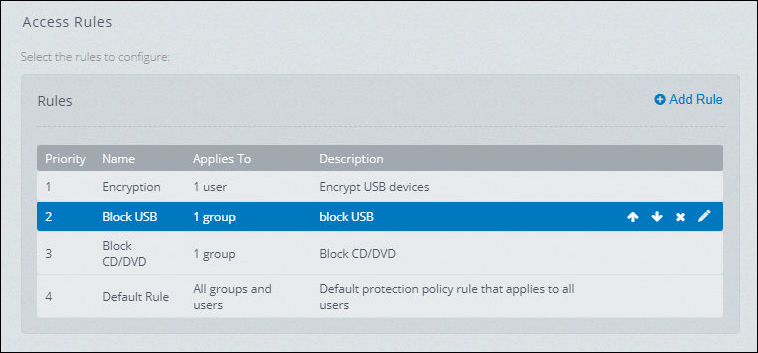
Access Rules list
NOTE
For a machine running in terminal services, the GFI OneGuard EndPoint Control policies based on users may not work properly. Hence, in such scenario, it is suggested to simply use the default rule that applies to all users.
Changing the priority
The priority of a rule is important to determine which rule is applied to a user or device. Once a rule is matched, the rules below it in the list are ignored.
To re-order the priorities:
- Login to GFI OneGuard.
- Go to Manage > Groups.
- Locate the group you want to edit and click Manage.
- Go to Services > EndPoint Control.
- Under the Access Rules section locate the rule you want to move. Click the up arrow icon to increase the priority and the down arrow icon to decrease the priority.
Editing a rule
To modify an existing rule:
- Login to GFI OneGuard.
- Go to Manage > Groups.
- Locate the group you want to edit and click Manage.
- Go to Services > EndPoint Control.
- Under the Access Rules section locate the rule you want to edit and click the
 icon.
icon. - Make the modifications required. For more information refer to Adding New Rule.
- Click Apply.
Deleting a rule
To delete an existing rule:
- Login to GFI OneGuard.
- Go to Manage > Groups.
- Locate the group you want to edit and click Manage.
- Go to Services > EndPoint Control.
- Under the Access Rules section locate the rule you want to delete and click the
 icon.
icon.