Configuring access permissions for specific devices
GFI EndPointSecurity enables you to set permissions by specific devices to Active DirectoryA technology that provides a variety of network services, including LDAP-like directory services. (AD) users and/or user groups. You can do this on a policy by policy basis.
For example, you can assign read-only permissions to a specific company approved USB pen drive. Attempts to use any other non-approved USB pen drives will be blocked.
Note
For an updated list of devices currently connected to the target computers, run a device scan and add the discovered devices to the devices database prior to configuring access permissions for specific devices. For more information refer to Discovering Devices.
To configure specific device access permissions for users in a protection policy:
- Click Configuration tab > Protection Policies.
- From Protection Policies > Security, select the protection policy to configure.
- Click Security sub-node.
- From the left pane, click Add permission(s)…in the Common tasks section.
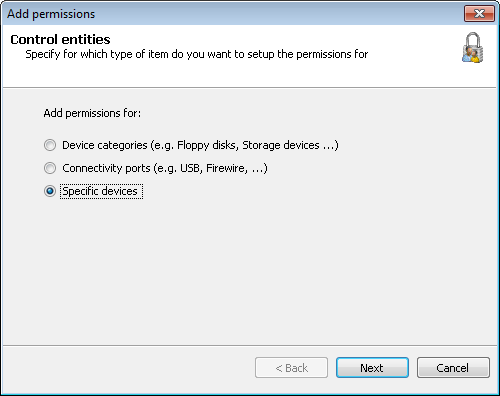
Add permissions options - Control entities
- In the Add permissions dialog select Specific devices and click Next.
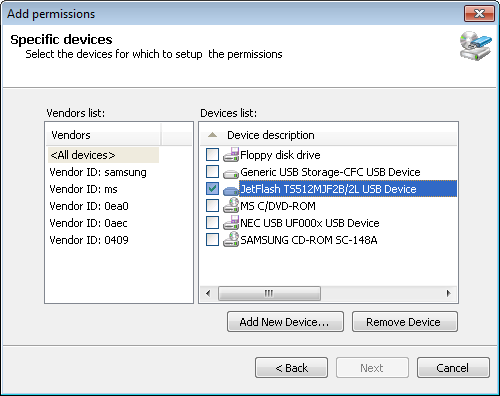
Add permissions options - Specific devices
- Enable or disable the required devices from the Devices list, for which to configure permissions, and click Next. If a required device is not listed, click Add New Device… to specify the details of the device for which to configure permissions, and click OK.
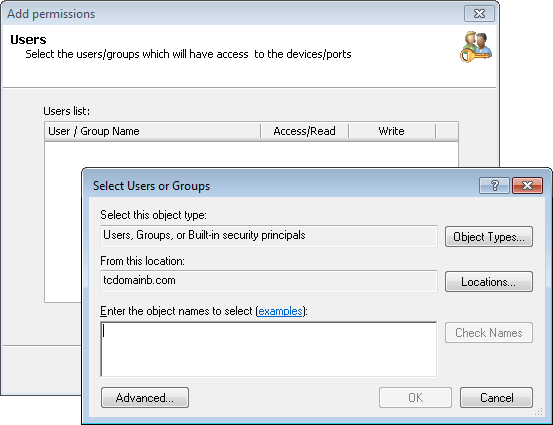
Add permissions options - Users
- Click Add… to specify the user(s)/group(s) that will have access to the specific devices specified in this protection policy, and click OK.
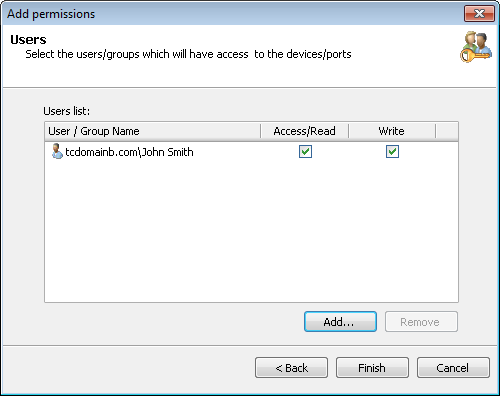
Add permissions options - Users
- Enable or disable Access/Read and Write permissions for each user/group you specified and click Finish.
To deploy protection policy updates on target computers specified in the policy:
- Click Configuration tab > Computers.
- From Common tasks, click Deploy to all computers….